¶ Installing the RhinoDatabase as an existing user
Upgrading of an existing RhinoDatabase runs the risk of losing data. Please read through all these steps before attempting to use the RhinoDatabase installer for the first time. If you are not comfortable with any of these steps please send an email to rhinodatabase@gmail.com with your contact details and we can go through the process together
If you do not have the latest install file for the RhinoDatabase, get it here
If you are looking to update the RhinoDatabase, go here. This is a guide for the first time installation for existing users who have never used the installer before. All RhinoDatabse users prior to Aug 2025
If you have been using the RhinoDatabase prior to Aug 2025, you have existing data that will need to be migrated to the new installation process. Follow this step by guide to the process
Existing users should make a backup of their current database folder to an external source such as a hard drive or flash stick before starting with the new installation process for the first time just
The best location to install the RhinoDatabase to is C:\RhinoDatabase. If you already have an existing version of the database prior to the installer being used in this location it is important to do the following. Firstly make a backup of this folder on an external source. Secondly, rename the folder from C:\RhinoDatabase to C:\RhinoDatbase_backup.
¶ Install Process
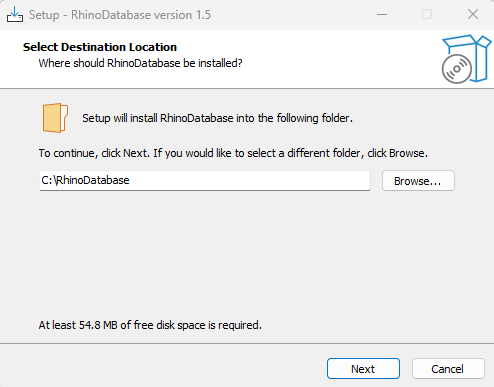
Run the installer. The first screen requests a folder to install the RhinoDatabase to. It is recommended to leave it as default.
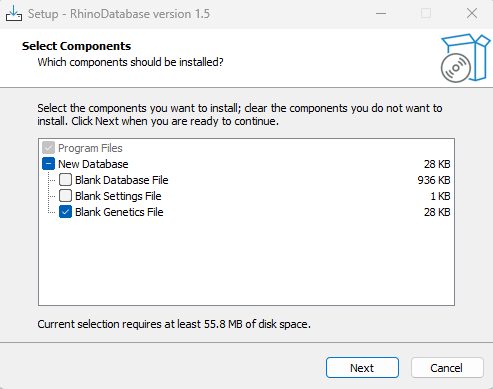
The second screen requests if you would like to install a blank database, settings file and genetics File. Existing users do not need the Database and Settings File as you will be copying over the files from your existing RhinoDatabase folder. Leave these two options unticked but select Blank Genetics File as this is a new feature to version 1.5
The third screen asks for the name of the Start Menu shortcuts folder. Recommended to leave it as default.
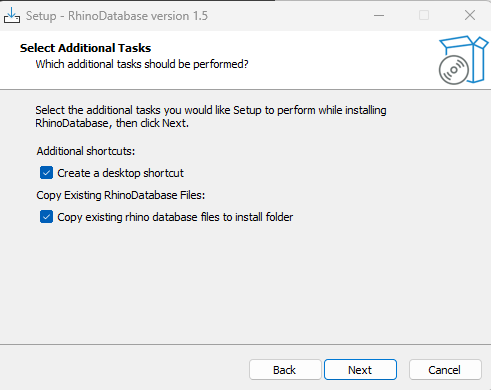
The fourth screen asks you to select additional tasks where the user can add a desktop shortcut and copy existing RhinoDatabase files. Select the option to copy existing files.
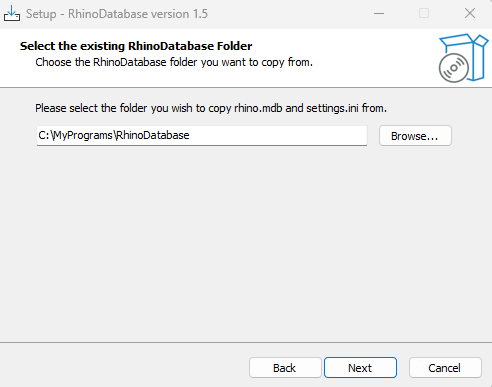
The following screen will ask you to select the folder where your existing RhinoDatabase is located. In the example below it is located at C:\MyPrograms\RhinoDatabase. Users who renamed their folder as part of the initial step, can select this RhinoDatabase_Backup folder as the folder where your existing RhinoDatabase is located
You can now install the RhinoDatabase and select to launch the RhinoDatabase after the installation is complete.
You will now have a newly installed version of the latest version with all the data from your database file and your settings. A couple of message boxes will pop up as the database is upgraded to v1.5. If you experience any errors at this stage when opening the database for the first time with the new version please send an email to rhinodatabase@gmail.com.
¶ Copying Additional Media Items to new installation folder.
The installation process will have installed the latest version of RhinoDatabase and copied across your old database and settings file. Additional media such as your photos, images, documents and tracking data need to be manually copied over to the new installation folder.
To demonstrate how to go about this, we are going to presume you kept the new installation directory as default and your old RhinoDatabase location was C:\MyPrograms\RhinoDatabase. For your purposes please use the directories applicable to you.
You will need to copy all four folders across from the old location to the new installation folder. This can be done in one of two ways
- Copying all four folders together (folders have kept the same names so a simple copy and paste will work)
- Individually copying across the contents of each folder to its empty folder in the new locaton.
| Folder Name | Old Location | New Location | Folder Descrption (what you are copying over) |
|---|---|---|---|
| rhinoimages | C:\MyPrograms\RhinoDatabase\rhinoimages | C:\RhinoDatabase\rhinoimages\ | Images of each rhinos ears used to generate the key file |
| rhinophotos | C:\MyPrograms\RhinoDatabase\rhinophotos | C:\RhinoDatabase\rhinophotos\ | All stored photos of rhinos |
| rhinodocuments | C:\MyPrograms\RhinoDatabase\rhinodocuments | C:\RhinoDatabase\rhinodocuments\ | Documents uploaded to the database |
| trackingdata | C:\MyPrograms\RhinoDatabase\trackingdata | C:\RhinoDatabase\trackingdata\ | Imported tracking data from EarthRanger |
Users of the RhinoDatabase often kept additional files and documents pertaining to rhino information in the RhinoDatabase folder. For this reason users should keep a backup of the old database folder. Going forward, it is suggested to keep the database folder containing only RhinoDatabase files and find a seperate location to store any additional data. This will keep the RhinoDatase folder small which will aid in backup and troubleshooting.