¶ Sightings Import - Excel or Delimited Text File
¶ New to version 1.5
Version 1.5 of RhinoDatase has improved support for importing sightings data. Prior to v1.5 data had to be in Tab Seperated Value (*.tsv) files which often caused errors on import if they were not correcly formatted.
Going forward, users can now import sigthings data from an Excel spreadsheet, CSV and TSV files. It is recommended to use an Excel spreadsheet where possible as this is the most robust method.
Import is now broken into three stages.
- Column mapping
- Error checking of raw sighting data
- Sighting validation
¶ Step 1: Column Mapping
The column mapping step is only necessary if the system doesnt find all the default column names. This step will be skipped if all necessary columns are present in the original file.
An example Excel Spreadsheet with all the correctly labelled columns can be found here
The default expected columns are:
| Column Name | Type | Required | Notes |
|---|---|---|---|
| SightingID | integer or string | Yes | Used to group sightings together |
| SightingDate | Date | Yes | Format can either be YYYY-MM-DD or DD/MM/YYYY. YYYY-MM-DD is suggested |
| Latitude | decimal | Yes | Decimal Degrees: DD.DDDDD |
| Longitude | decimal | Yes | Decimal Degrees: DD.DDDDD |
| LocationName | string | Yes | |
| Source | string | Yes | |
| Comment | string | No | |
| RhinoName | string | Yes | |
| Sex | string | Yes | One of the following values - 'F' 'M' 'U' 'Female' 'Male' 'Unknown' |
| Age | string | Yes | One of the following values - 'A' 'B' 'C' 'D' 'E' 'F' |
| Condition Score | string | No | One of the following values - 1, 1.5, 2, 2.5, 3, 3.5, 4, 4.5, 5 |
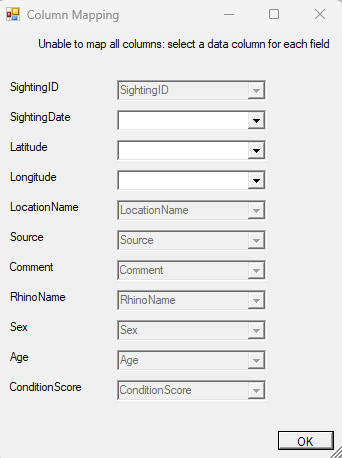
If you are presented with the column mapping screen, please assign a column to each of the fields. Fields where the column has already been found will be greyed out. If you dont have any data for that column and it is not required, select BLANK (found at the bottom of the dropdown).
¶ Step 2: Error Checking of Raw Sighting Data
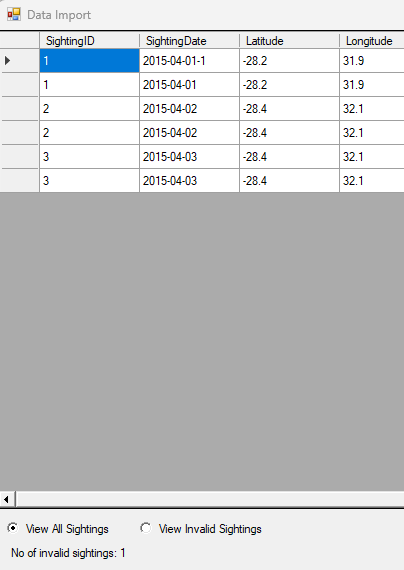
Step two will prevent you with a list of imported data rows and allow you to view rows where invalid data is present (if any). In the example below, there is an error in the first SightingDate field. You can filter for all rows containing an error. Errors will need to be correctd before you can continue. You can delete the row or edit it in this form. If there are a large number of edits, it is sugested to go back to the source file (presumable Excel spreadsheet) and fix the data before trying again.
Once all data errors have been fixed, you can import the data into step 3
¶ Step 3: Sighting Validation
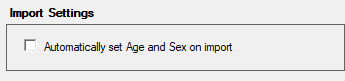
Step 3 is the same as versions prior to v1.5 where each sighting is validated against rhinos in the database. If you do not have the age and sex of the animal avaiable in the original data source, there is an option in the application settings to automatically set these on import. This saves time but should ideally only be used if necessary as validating against age and sex does help prevent erroneous sigthings if the data is available in the import file.
Application Settings: